
ABSeq: Reference test your music on the go
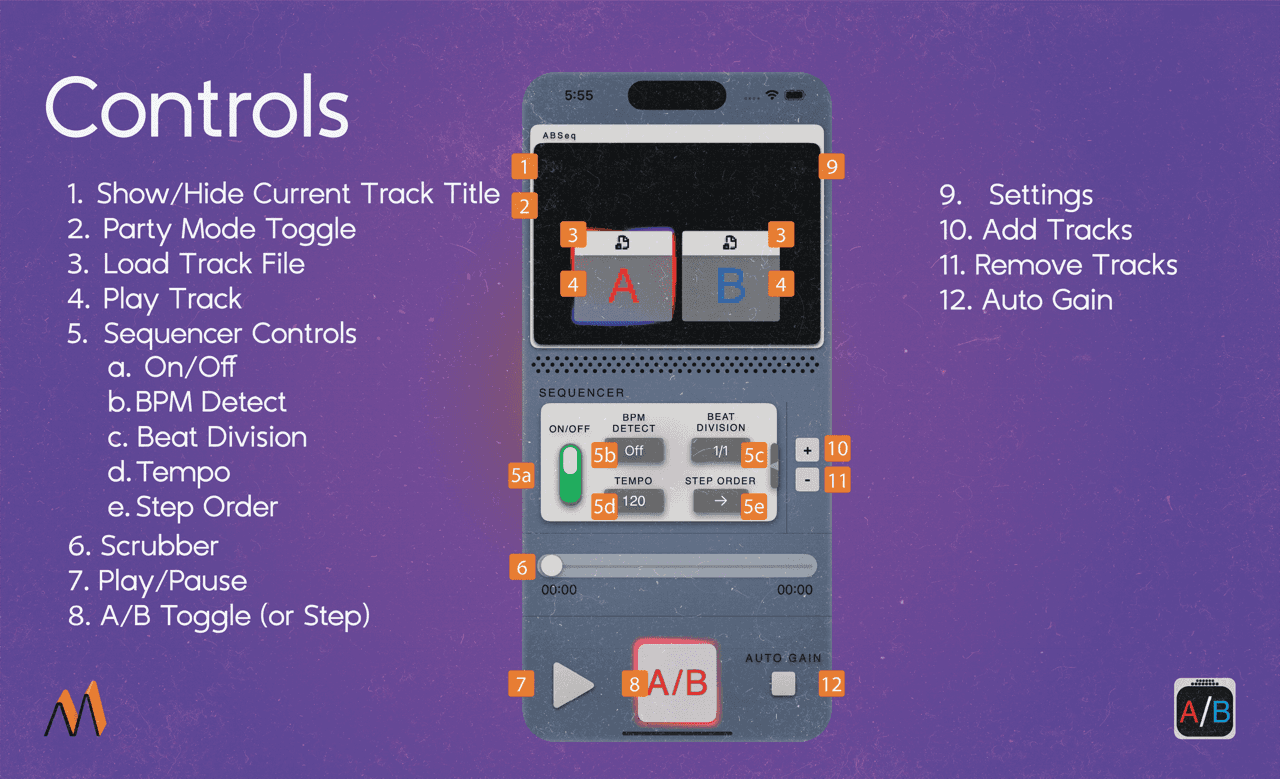
ABSeq is a tool for referencing your music on the go.
Musicians, producers, and audio engineers all know the feelings of "Analysis Paralysis" that arise with any project. Often, changes to a song result in a new version
Made a change to an instrument, vocal or effects? That's a new version.
Received a new mixdown from your mixing engineer? That's a new version.
Just got your master back from your mastering engineer? That's a new version.
But how do we make sure that new version is better?
Traditionally, you would flip back and forth between audio files in your document browser - comparing old and new versions
However, you have to seek back and forth, sync up the tracks, press play, etc.
A lot of time and contextual information is lost in this process, leaving you in a state of decision fatigue
With ABSeq, you load in your audio files, press play, and swap back and forth to hear the difference. It's that simple.
First Steps
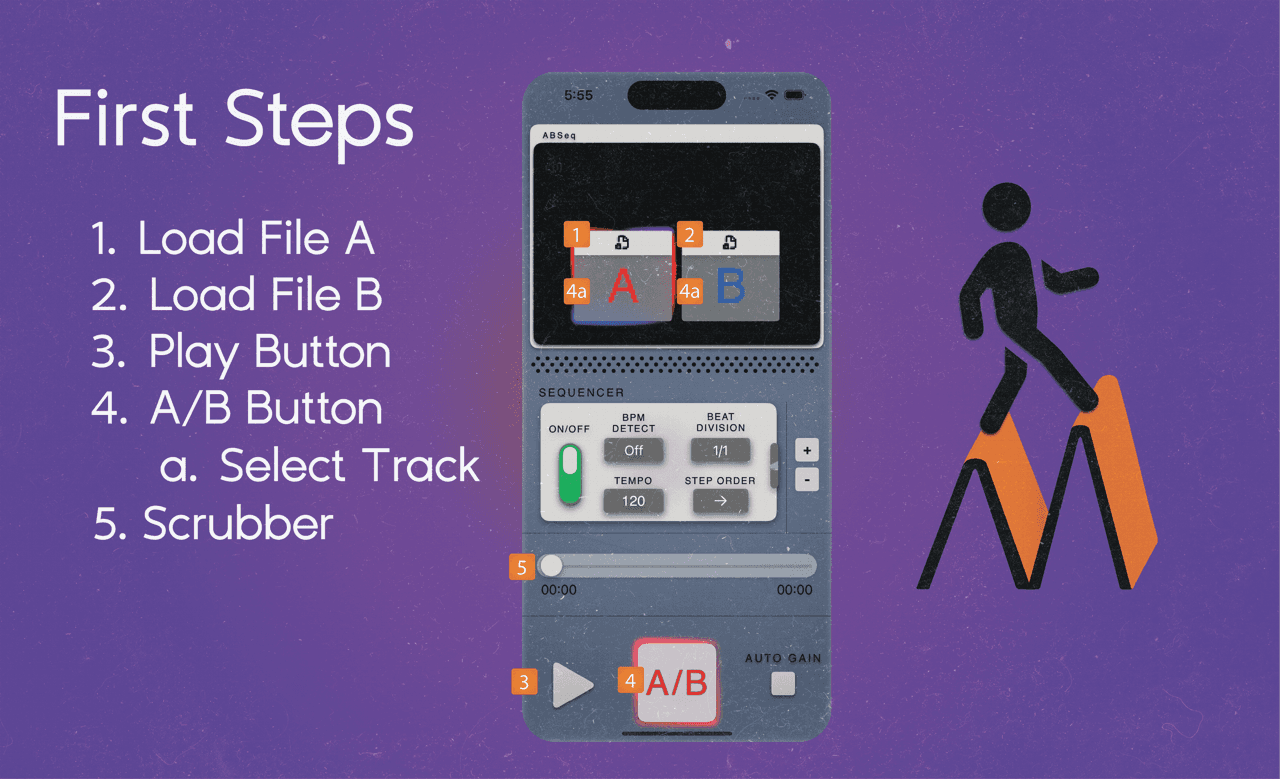
Load in files from your device's document browser to begin testing
Press the "Load File" button on a Track A and select your song
Press the "Load File" button on a Track B to select a track to compare to
This can be:
a new or old version of the song, featuring changes to production
a new revision from your mixing or mastering engineer
a reference track
Press "Play"
Both tracks will play simultaneously, in sync.
(* this works best with files of the same length)
Press the "A/B" button to swap between tracks
The current playing track is denoted by the colorful border around the track button
You can also tap on the track letters ("A", "B", "C", etc.) to hear a specific track
That's it! You just referenced your first track.
The human ear is very sensitive to change. Even a musician with minimal ear training can pick up on subtle differences in feel and tonal quality. ABSeq takes advantage of your ear's sensitivity, helping you decide which version is better, so you can release faster.
Sequencer
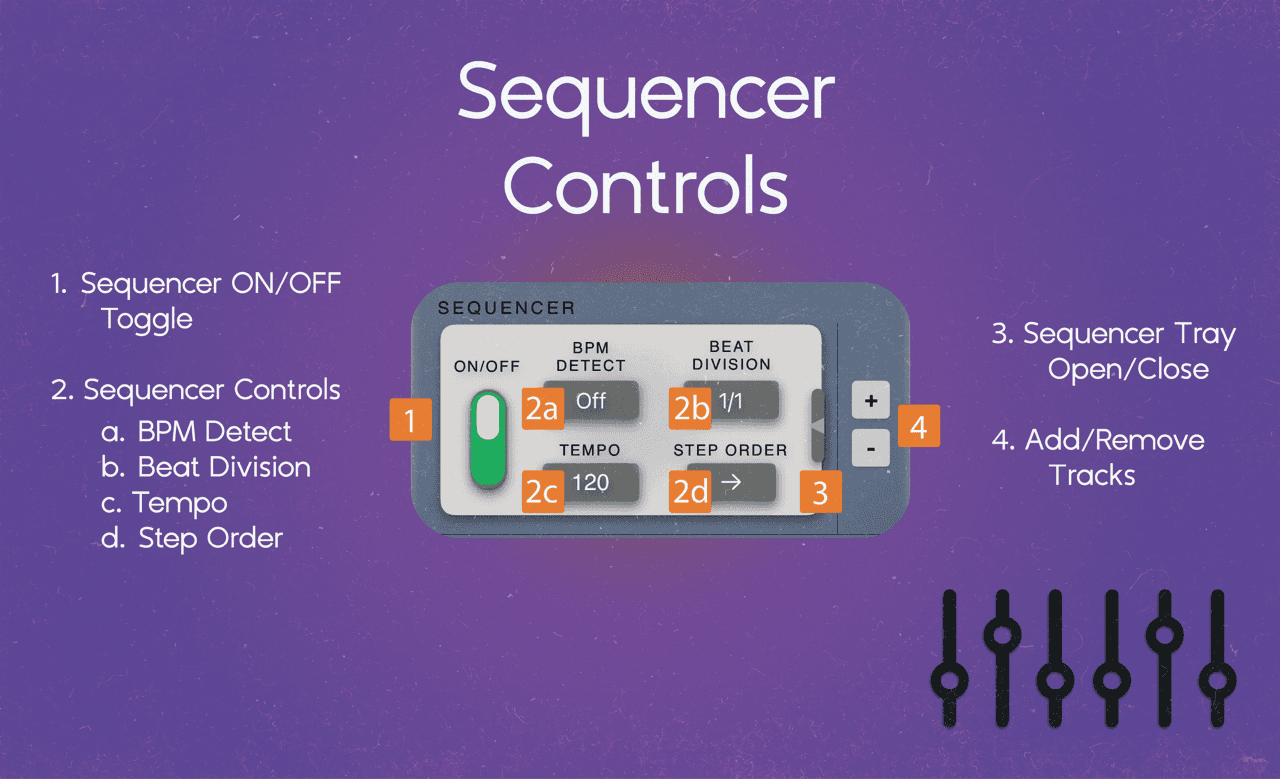
With the built in sequencer, you can automatically switch between tracks, allowing you to focus on the music.
HOW TO:
Turn on the Sequencer with the "ON/OFF" switch
Select a Tempo and Beat Division (the default is 1/1 or 1 Bar)
This controls the rate of switching
Press play!
TIP: Close your eyes, let the sequencer run and try to listen for differences between the two files
To sync the sequencer to the tempo of a track,
Open the sequencer
Select a track from the "BPM Detect"
ABSeq automatically detects the Tempo of your track, and syncs the sequencer accordingly
Adding more tracks
Press the "+" button (and "-" to remove)
Load a file into the new track(s)
Add up to four tracks!
When you add more than 2 tracks, the "A/B" button changes to "Step" mode.
Press "Step" to hear the next track in the sequence
Sequence Order
Press the "Order" button to change the sequence order. Choose from:
Forward - left to right
Backward - right to left
Random - plays a random track each time
Get Creative
As you may have realized by now, this sequencer opens a world of creative possibilities.
Try loading in different audio files into ABSeq and discover new musical patterns!
Autogain
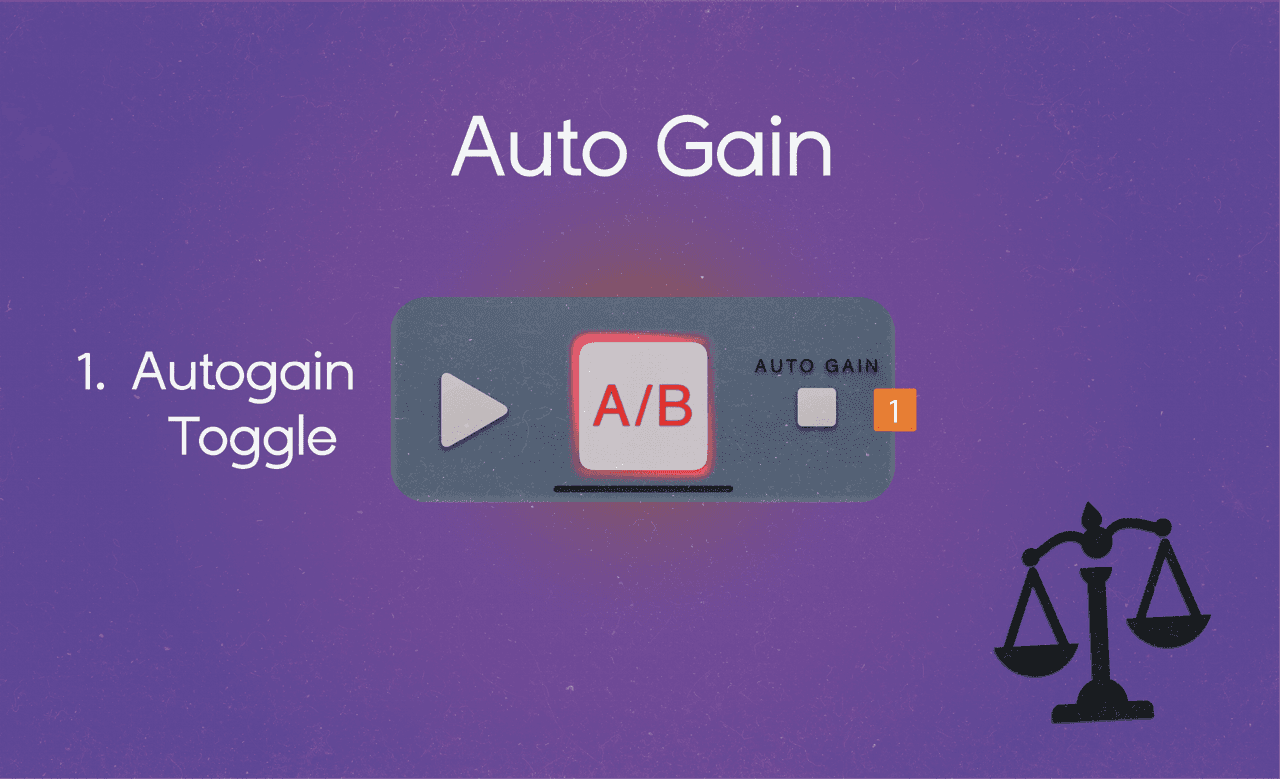
Often times, different versions of songs will vary in loudness. When comparing a song to a new mix or master, it's easy to be fooled by the old adage "Louder is better".
This is called Loudness Bias.
To eliminate this, ABSeq includes an AutoGain feature.
Press the "Autogain" button.
ABSeq handles the rest!
Autogain analyzes the loudness levels of all tracks in ABSeq, and sets them to be equal, without clipping. This way, you can be sure you're hearing differences in audio without the bias introduced by loudness
Display Controls
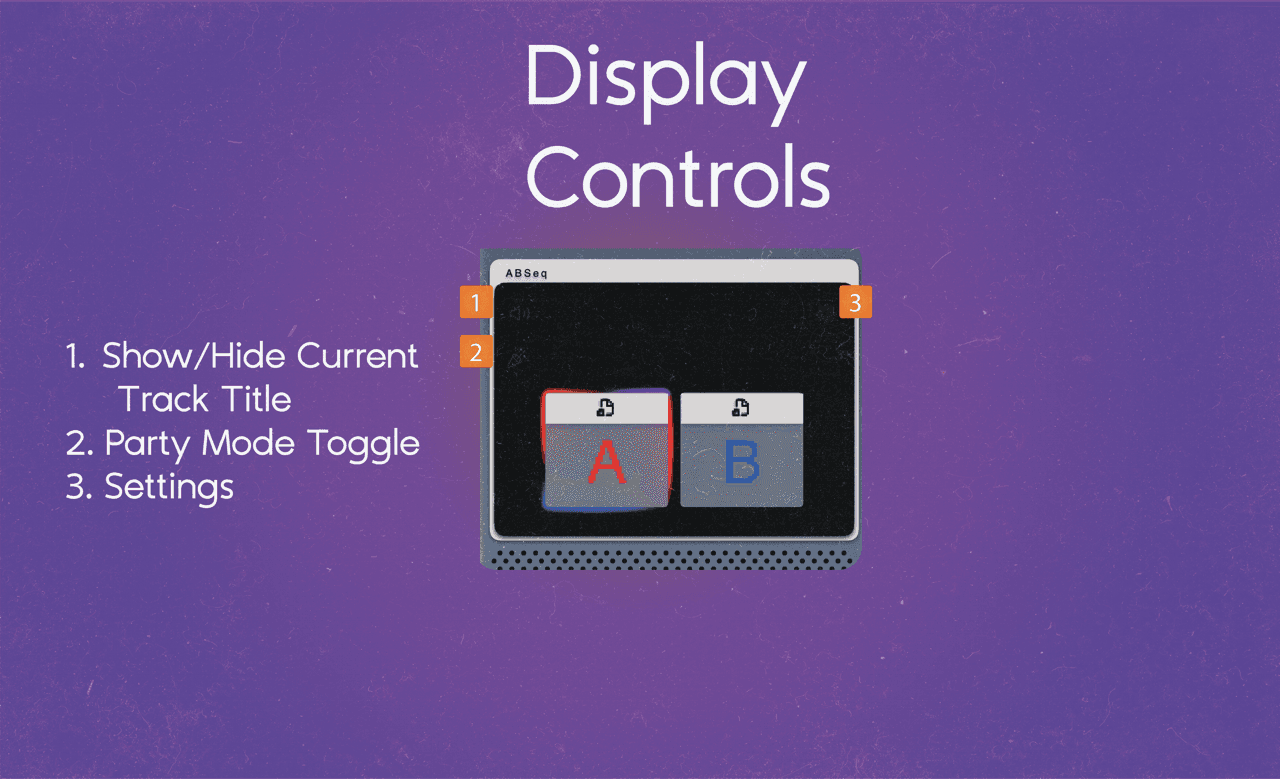
The display section includes a few useful controls:
Track Title
Press the Track Titles button to toggle display of track titles
When on, the title of the current playing track will be displayed
Party Mode
Press the Party Mode button to cycle through fun animations
Enhance your listening vibe, or create engaging content for your music (via screen recording)
Settings
Press the Settings button to enter the settings menu
Select your preference for Light or Dark Mode
Select from fun themes to personalize the look and feel of ABSeq to suit your taste!
Still stuck?
Send a question, bug report or feature request from ABSeq support.